Reserve an application slug alias
You can reserve one additional slug as an alias for an application. An alias is useful when you want to introduce a new customer-facing application name without invalidating references that use the original application slug.
An application can have the following slugs:
- Primary slug: The slug created with the application. The primary slug cannot be changed and is the only slug that can be used to push images to the Replicated registry or navigate to the application in the Vendor Portal.
- Alias: An additional, permanent slug that can be used for authenticated image pulls and to access the same Enterprise Portal as the primary slug. The alias is read-only and cannot be used to push images.
- Active slug: The primary slug or alias that Replicated uses in newly generated customer instructions and licenses. An application has exactly one active slug.
Changing the active slug applies to all customers for the application. It does not change access permissions or invalidate either slug. For example, if you make the alias active, existing customers can continue to pull images using the primary slug, while newly generated instructions use the alias.
The alias reservation is permanent. You cannot delete, release, or transfer the alias. Before reserving it, verify that the spelling is correct and that you want to assign it to the application.
Installer compatibility
Helm
- Both the primary slug and an alias can be used to pull charts. Newly generated Helm install instructions use the active slug.
KOTS
- New installations can use an application slug alias with any version of KOTS.
- On KOTS v1.132.0 and later, existing installations pick up a new active slug automatically on their next license sync. The Admin Console URL for the application changes to use the new slug, and existing Admin Console URLs redirect to it.
- On KOTS versions earlier than v1.132.0, existing installations do not adopt a new active slug, and operations that compare the application slug against the license can fail. Move customers to KOTS v1.132.0 or later before you change the active slug.
Embedded Cluster
- New installations use the active slug. Embedded Cluster names the installer binary, its assets, and the application air gap bundle from the active slug, and online installations download these artifacts at install time. This applies to both Embedded Cluster v2 and v3.
- Switching the active slug is not currently supported for existing installations. An Embedded Cluster installation records the application slug on the host at install time, and upgrades compare that recorded value against the slug in the license. If you switch the active slug, upgrades fail on installations that already exist. Do not switch the active slug for an application that has Embedded Cluster installations in the field.
- Air gap bundles are built once and then downloaded. After you change the active slug, rebuild any Embedded Cluster air gap bundles so that the application slug in each bundle matches the new active slug.
Reserve an alias
The Application slug aliases controls are available when slug alias management is enabled for the application and your role has permission to update the application.
The application slug alias feature requires an entitlement. If the Application slug aliases controls are not available, reach out to your Replicated account representative to get access.
To reserve an application slug alias:
-
Log in to the Vendor Portal and go to Application Name > Settings.
-
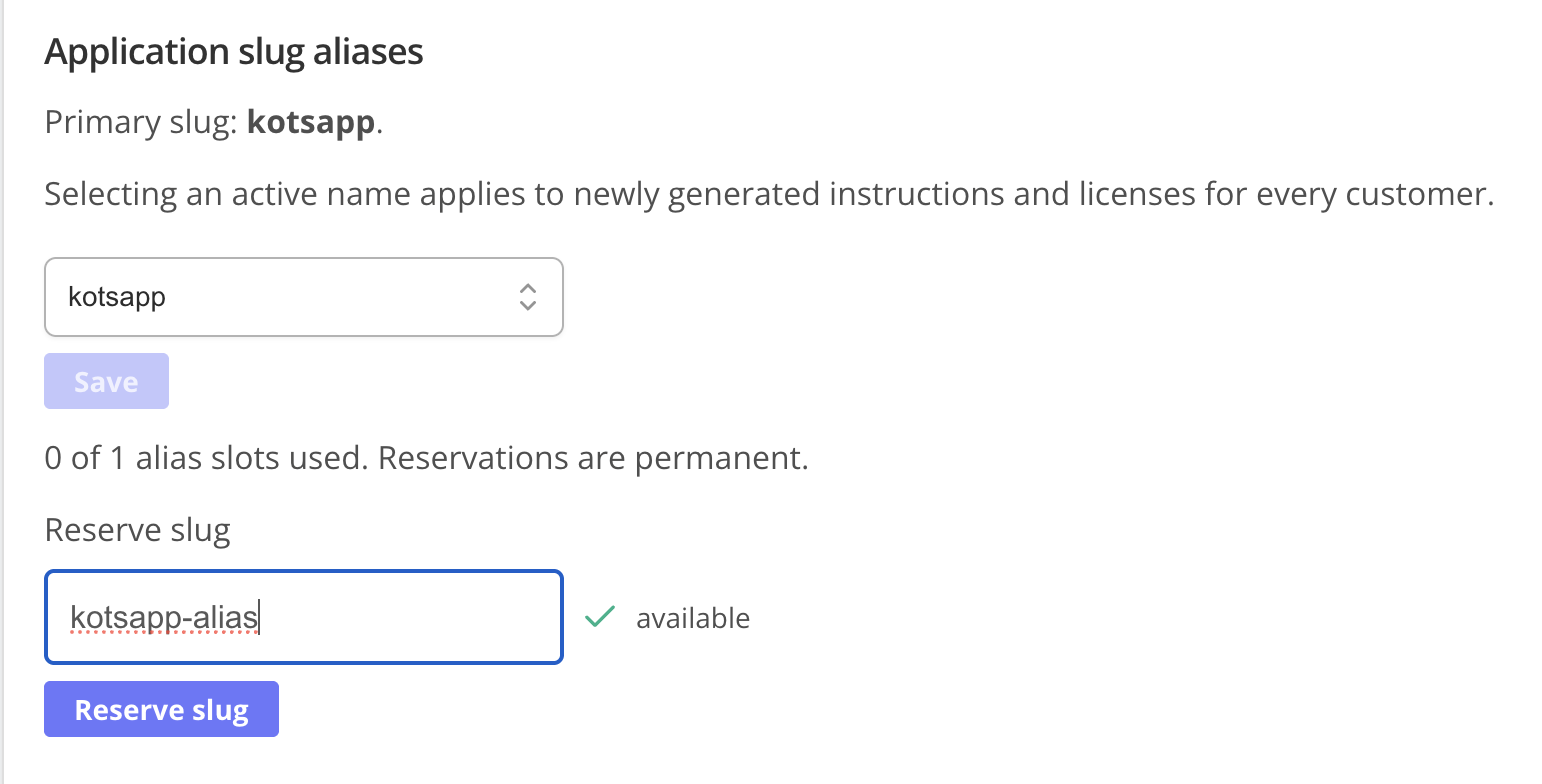
Under Application slug aliases, enter the alias in Reserve slug.
Slugs can contain lowercase letters, numbers, and single hyphens, and can be up to 63 characters. The Vendor Portal checks whether the slug is available. Slugs are unique across Replicated applications.
-
When the alias is shown as available, click Reserve slug.
The alias is reserved as an inactive, read-only alias. It can be used immediately for authenticated image pulls. If the application uses the Enterprise Portal, the Vendor Portal also provisions a hostname for the alias; the displayed portal status indicates when the hostname is ready.
Change the active slug
Before you switch the active slug, confirm that the application has no existing Embedded Cluster installations, and that any existing KOTS installations are on KOTS v1.132.0 or later. See Installer compatibility.
To use the reserved alias in newly generated customer instructions and licenses:
-
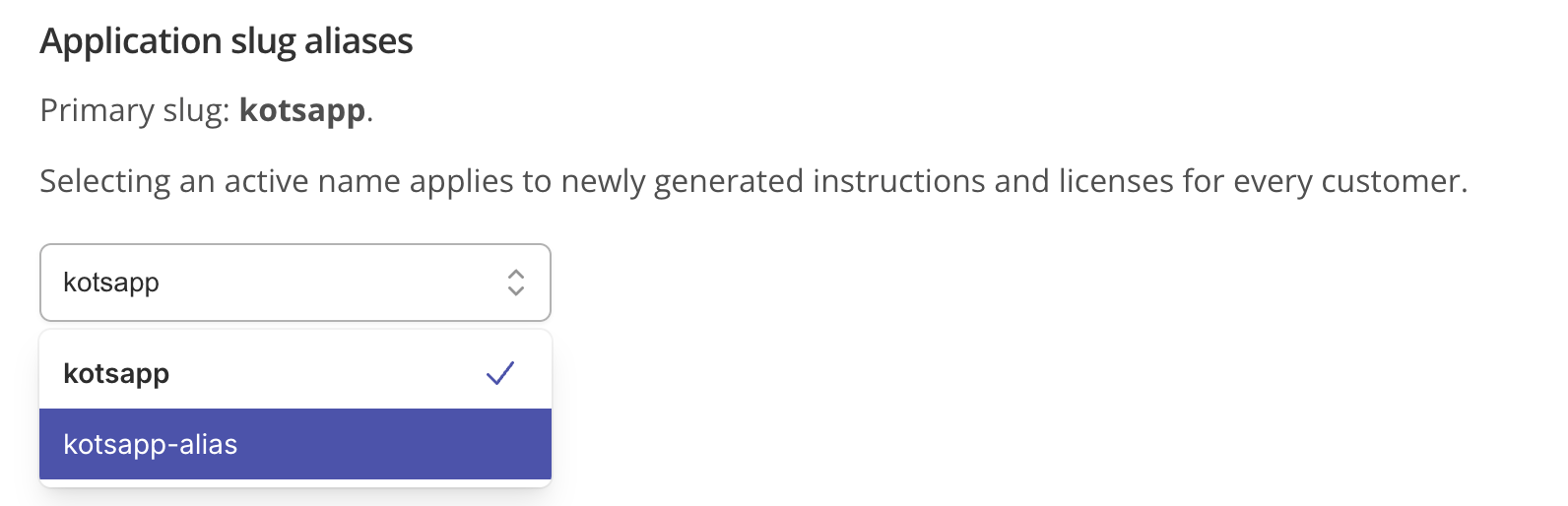
Under Application slug aliases, select the primary slug or an alias from the active slug list.
-
Click Save.
-
If you support Embedded Cluster air gap installations, rebuild your air gap bundles so that the application slug in each bundle matches the new active slug. See Installer compatibility.
Changing the active slug does not update previously generated license files or instructions. It also does not make an alias writable: continue to use the primary slug when pushing images to the Replicated registry.